



The Ogham Graph Editor is the primary authoring environment for Ogham Storyteller. It is a visual node graph tool that lives directly inside the engine editor, so writers and developers work in the same environment as the rest of the project with no round-trip to an external tool. Every story is represented as a directed graph of nodes connected by options; the graph is saved to a human-readable .ogham JSON file that is easy to version-control and review in a pull request diff.
The canvas supports multiple story assets loaded simultaneously, colour-coded per asset. Nodes can be annotated with highlight colours and labels, grouped with Trello-style label pills, connected with bezier wires or compact tab-flag jumps, and rearranged with a one-click auto-layout. An in-editor play window lets writers simulate the full story, including state variable interpolation and option conditions, without entering Play mode.
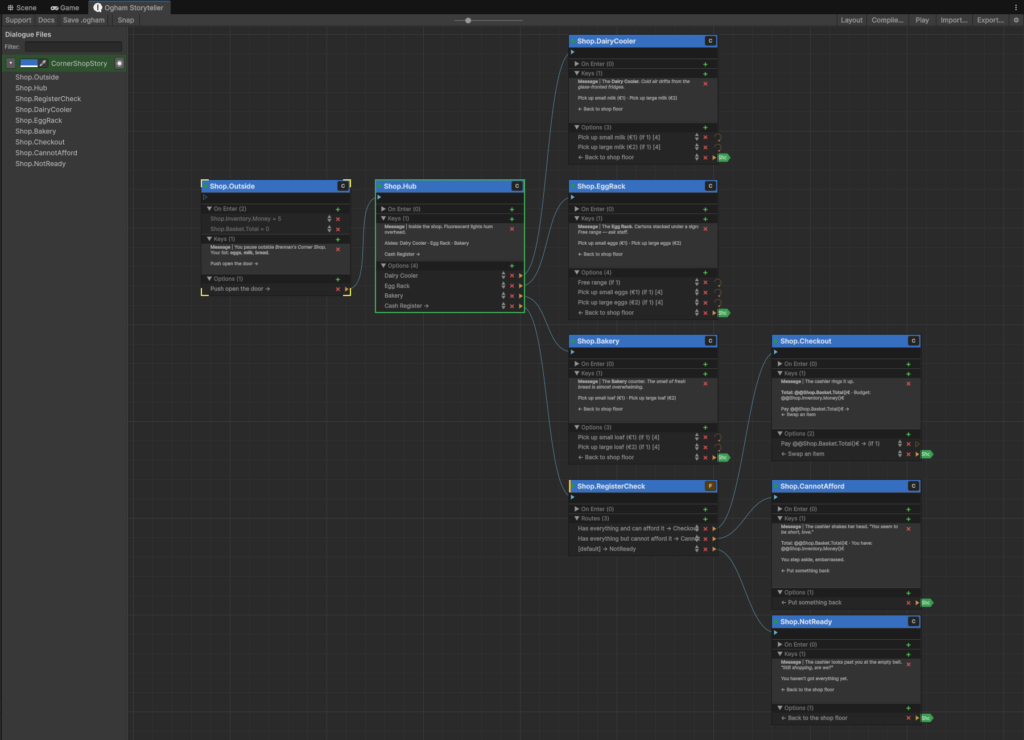
Getting Started #

Your first step is to create a Story, you can do this by right clicking in your asset folder and selecting Create > Ogham > Story. This will create a new .ogham file for you.
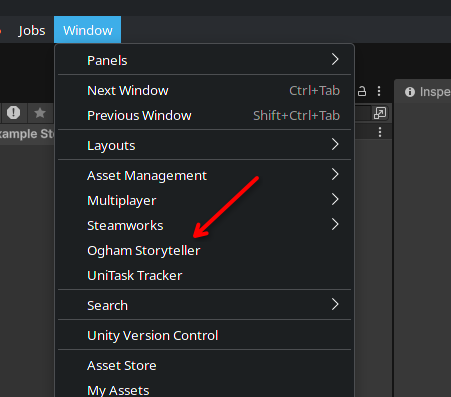
Open the Editor #
Once you have story file created you can open the editor and get to work writing your story.
Best Practice #
An Ogham file aka “Story” contains the nodes and graph information for your narrative. You can have as many or as few as you like and node links can span across Ogham files so you don’t have to organism them by access or dependency.
This feature lets you break your games narrative up into region, character, topic or any other structure you like. The files them selves are simple JSON files and will work nicely with any source control or change management tool you may be using.
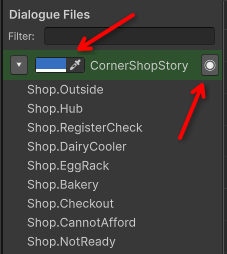
The Node Graph will show you every node in every story. You can color code “Stories” to easily visually differentiate them and you can toggle visibility on stories by using the Files view on the left side of the editor.
Add Entry #
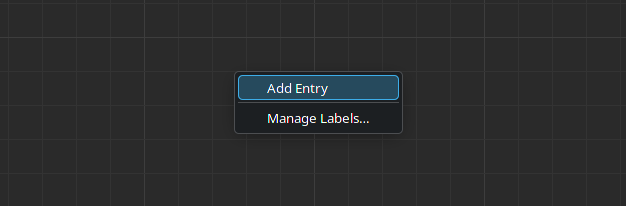
Right click in the graph and create your first node.
Once you have nodes and options you can create a new node by simply pulling off an option and drooping in the a clear space on the graph.
Writing #
You write your content by adding “fields”; you add a field by simply clicking the add button located to the right of the Fields area.
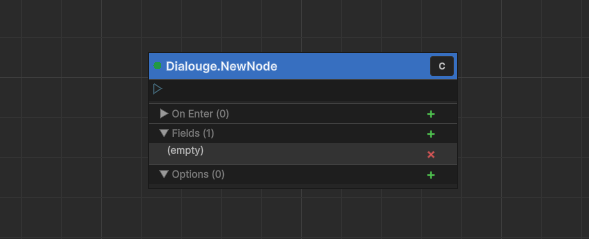
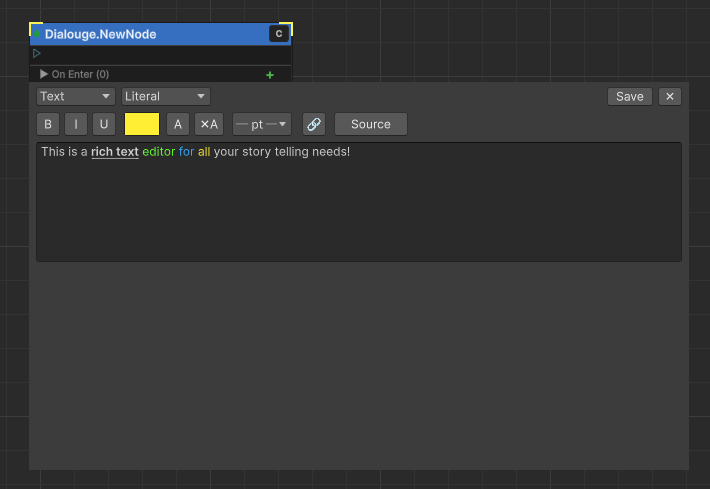
Click the new field and a rich text editor will appear. Remember a field can be Text, Sound, Image or Prefab.
Pro Tip:
The order you add fields in matters for your game logic. You can have as many fields as you like and what they mean is up to your game.
For example:
In a game where you display the name of the speaker and what they are saying you will probably choose to add at least 2 fields.
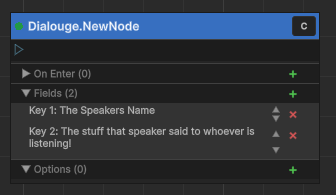
Alternatively you have a speaker and a listener and indicate the portrait for each by adding fields in the following pattern.